An Arkansas UCC search lets users access official records to see whether a specific person or entity has any filings associated with their name. These filings give public notice of a creditor’s security interest in a debtor’s property. The Secretary of State’s Business & Commercial Services (BCS) Division handles all UCC-related actions.
Business Entity Search

By searching, you agree to our Terms of Use and Privacy Policy.
UCC Search
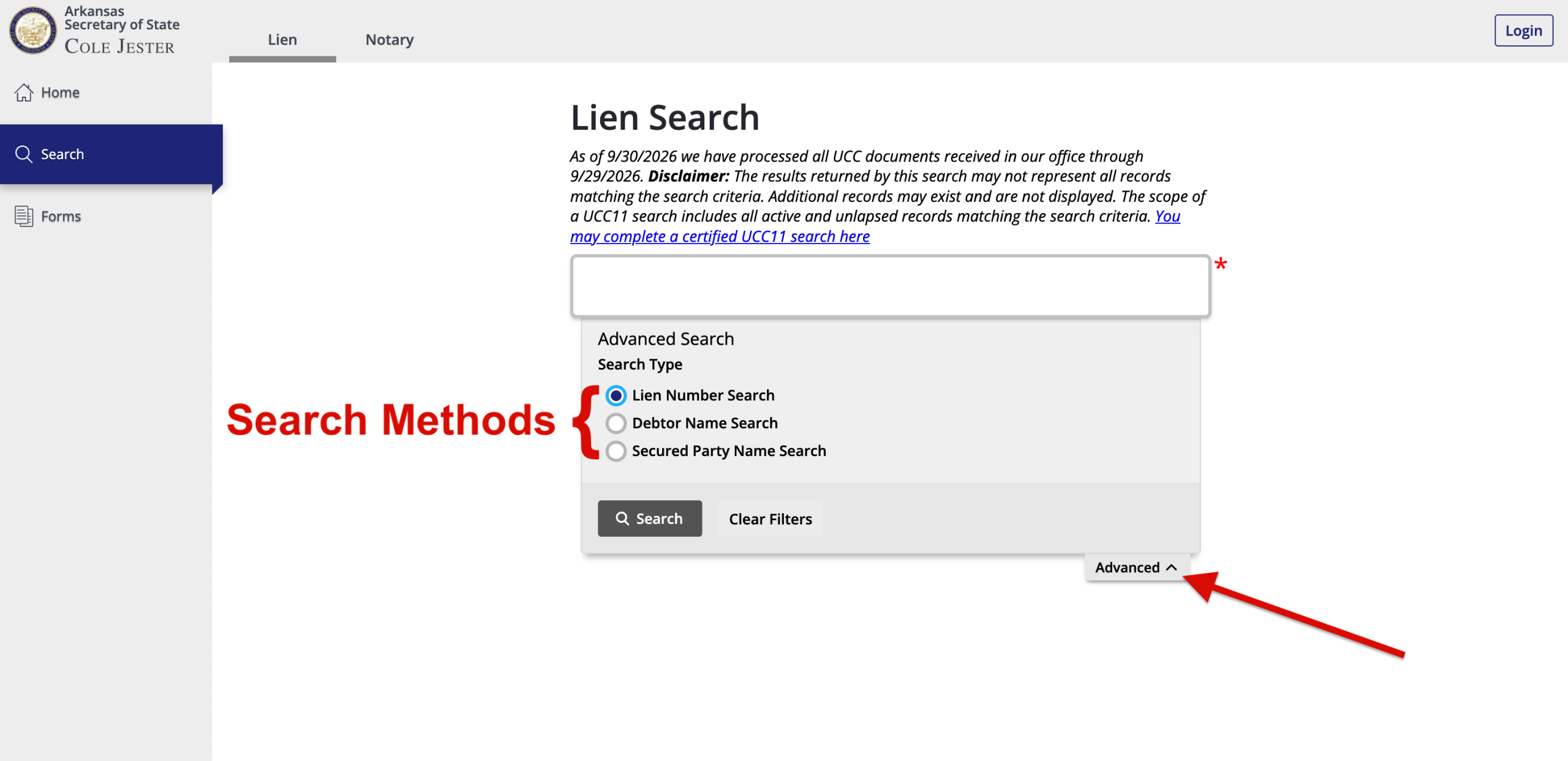
1. Visit the UCC & Lien Public Search Page
- Lien Number (default)
- Debtor Name
- Secured Party Name
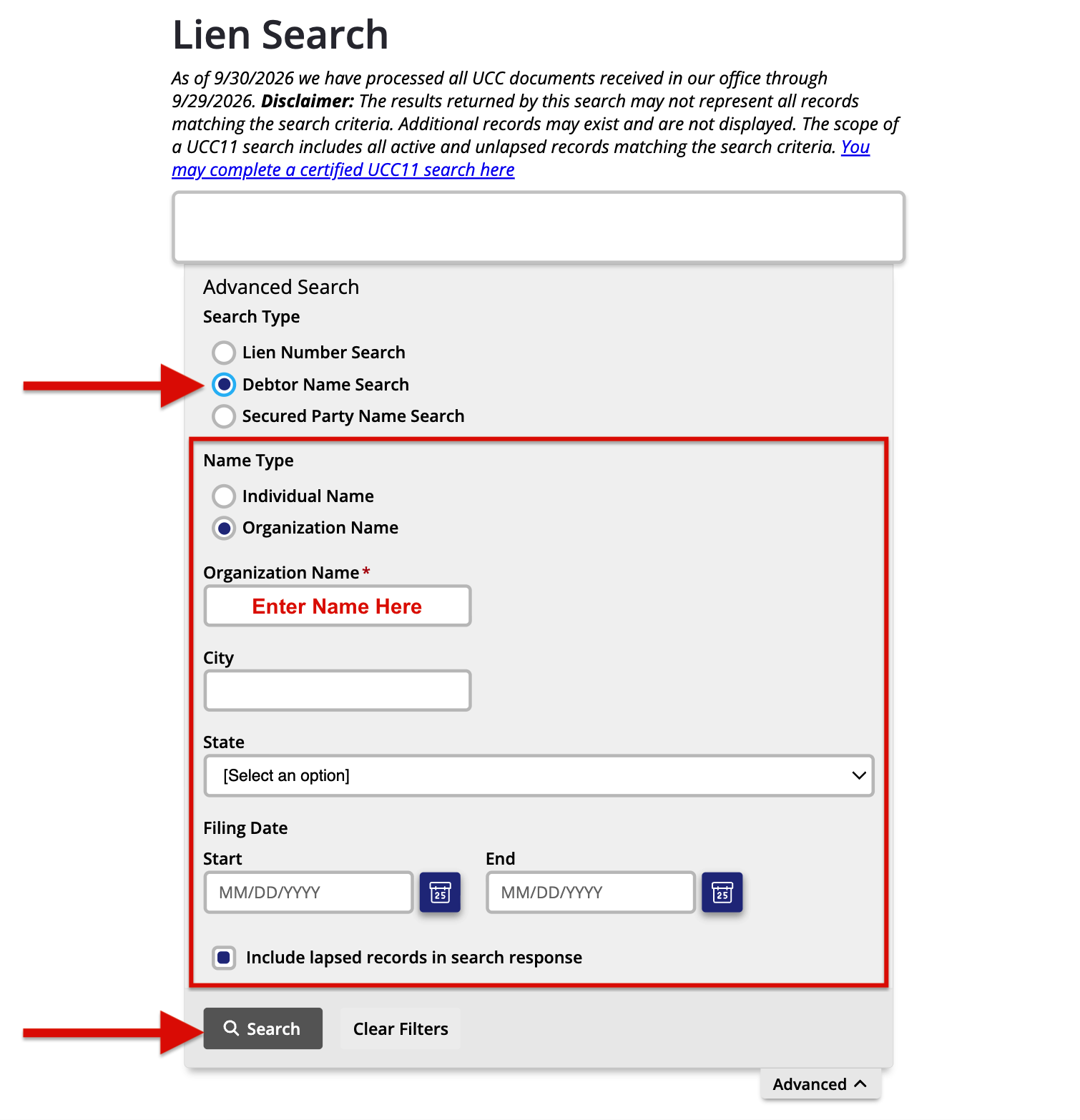
2. Search By Debtor’s Name
Searching by a debtor’s name is the most common way to locate a record without a specific file number. Select the corresponding option and provide any of the following known details:
- Name
- City & State
- Filing Date
- Status (check box to include lapsed/inactive records)
3. Analyze the Results
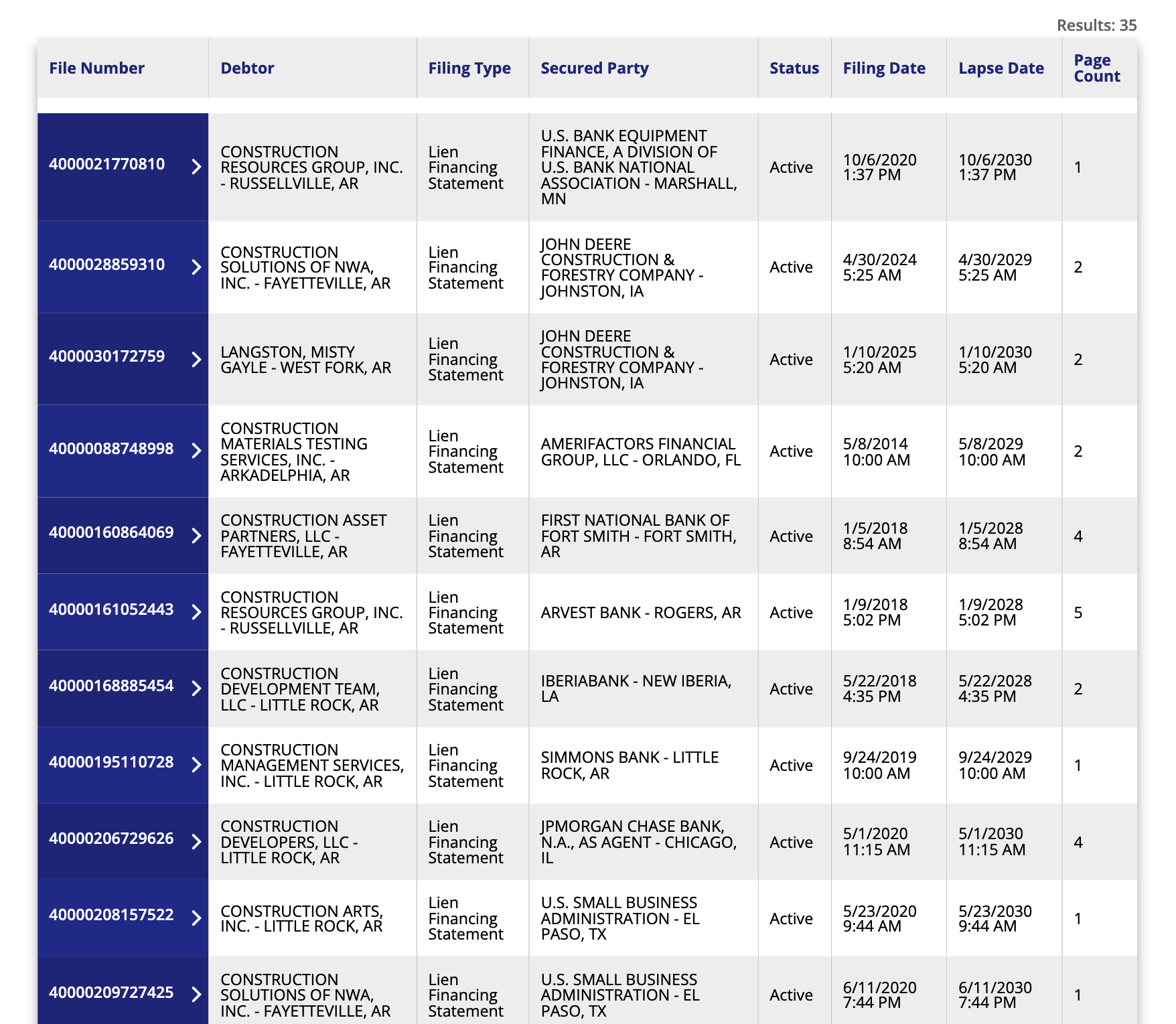
After entering a search, scroll below to observe the matches associated with the data provided. Depending on how refined the search was, users may see other businesses with similar names.
Identify the search target’s filing(s) and review the record’s information. Each result will display the following details related to the filing:
- File Number
- Parties’ Names (debtor & secured party)
- Filing Type (financing statement or associated document)
- Status (active or inactive)
- Start & End Date
- Page Count
4. View More Details
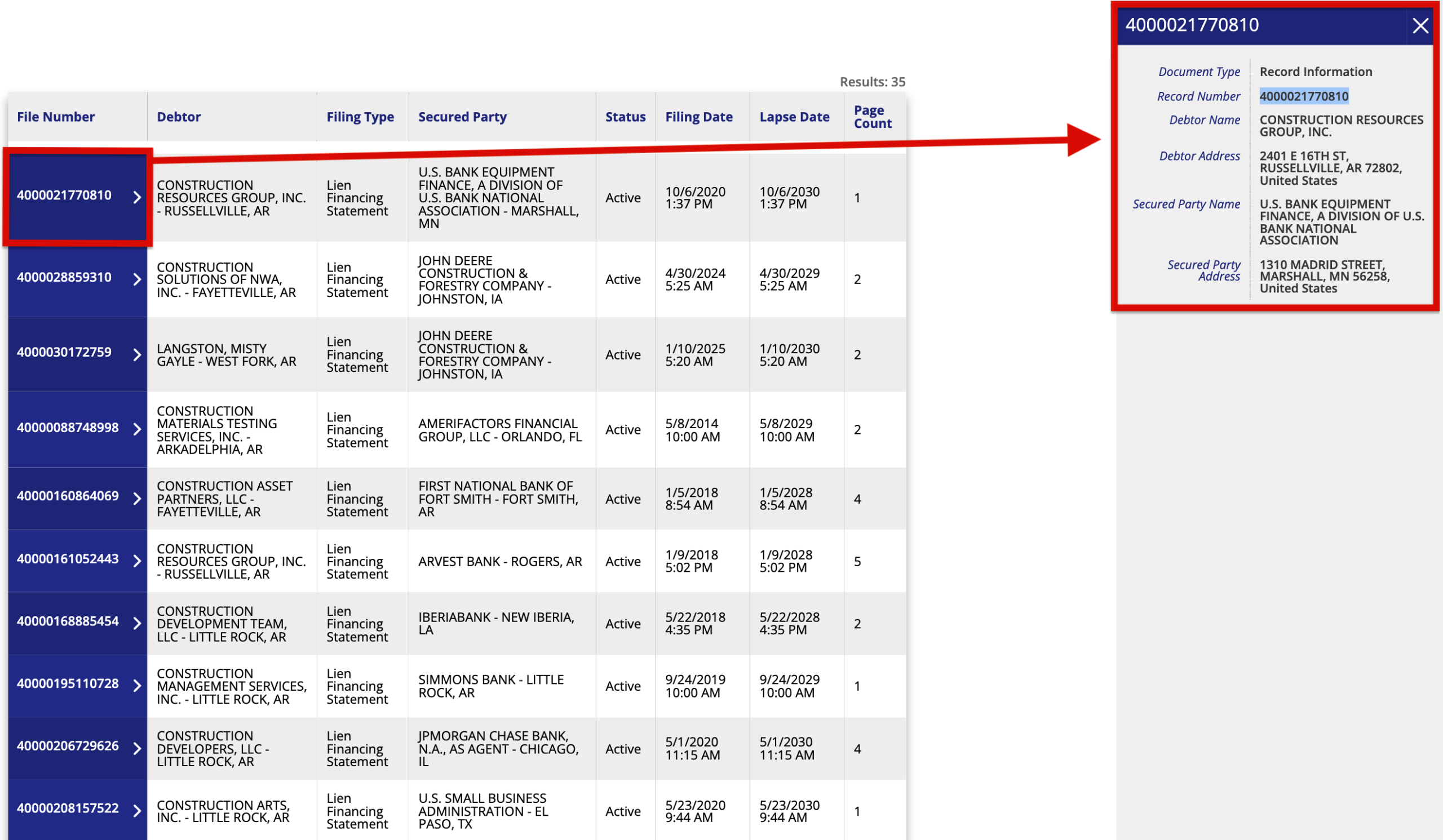
Click the file number of the record that you wish to further explore. Here, searchers can view additional information, such as the addresses of the involved parties, for further confirmation.
To access copies of documents associated with a specific record, make note of the file number and proceed to the next step.
5. Obtain Copies
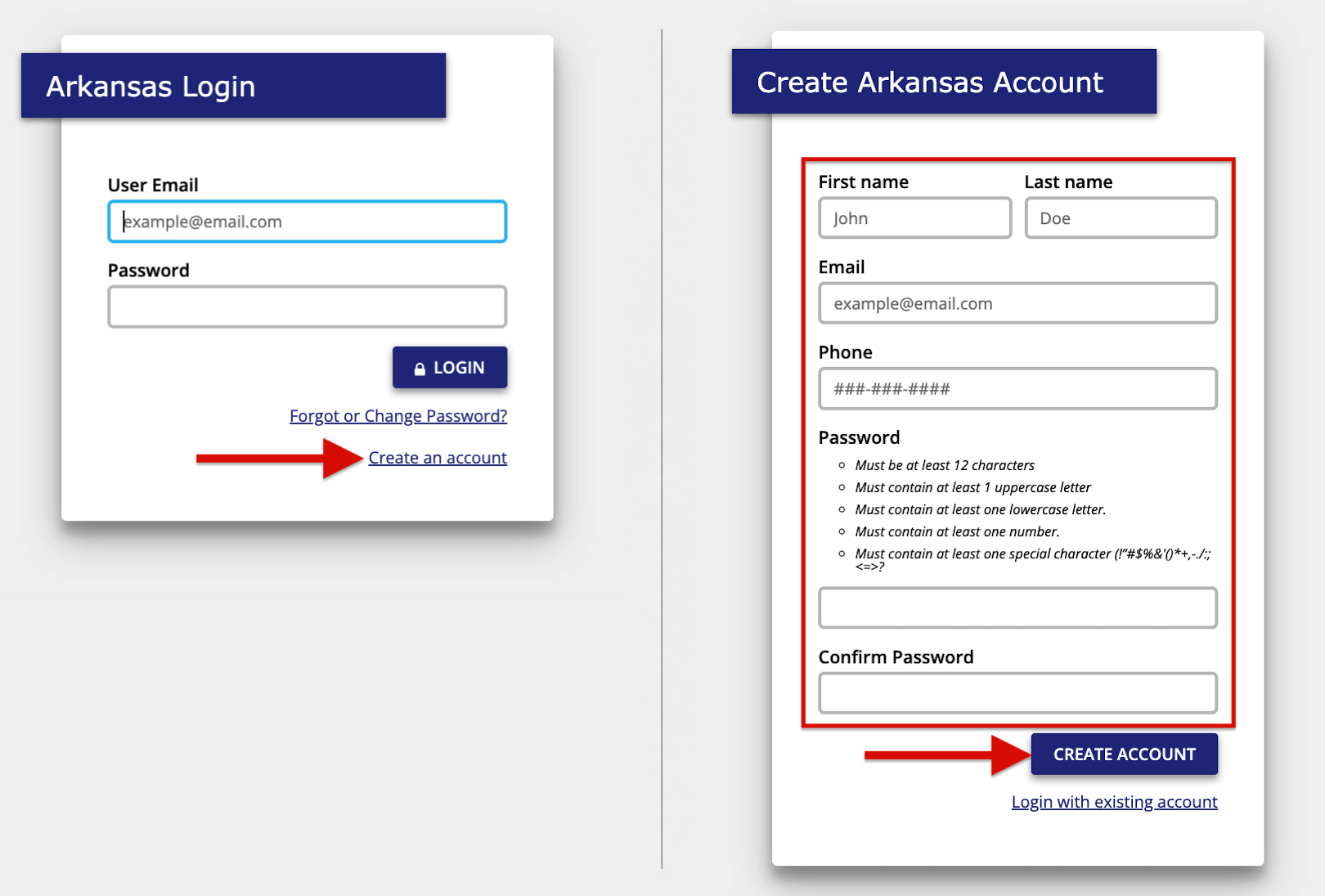
The state stores scanned copies of UCC filings in its system that can be acquired for a fee. Go to the state’s online portal to create an account and be prepared to furnish the following enrollment info:
- First & Last Name
- Phone Number
- Password
Once completed, click “Create Account“. (If all fields are properly filled out, users will be directed to sign in with their new login credentials.)
6. Provide Submitter Details
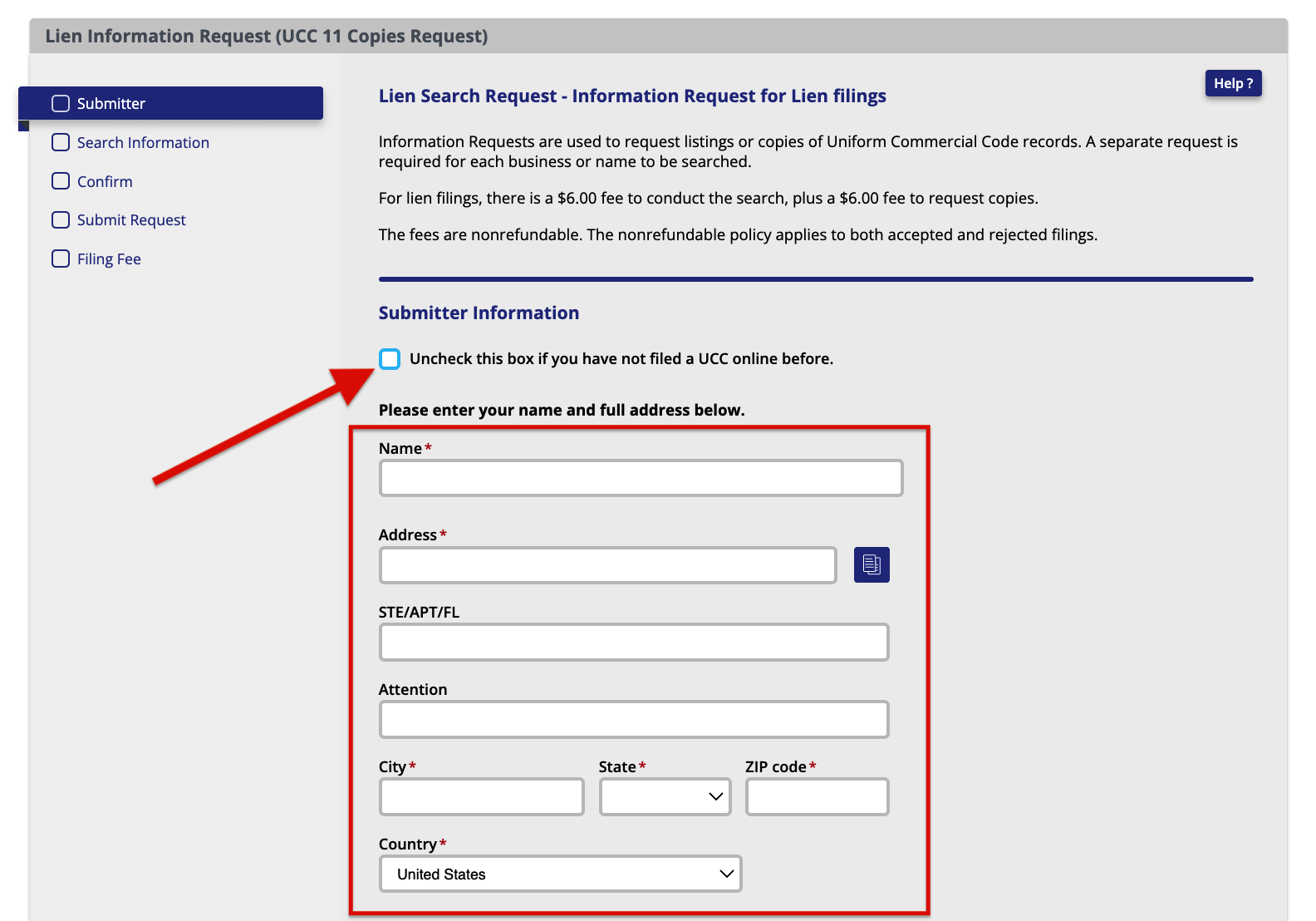
After logging in, users will be directed to the Lien Information Request (UCC-11 Copies Request) page. Uncheck the box (assuming you are a new filer) and supply the following submitter details:
- Name
- Address
- City, State, & Zip Code
- Country
7. Choose Filing Request
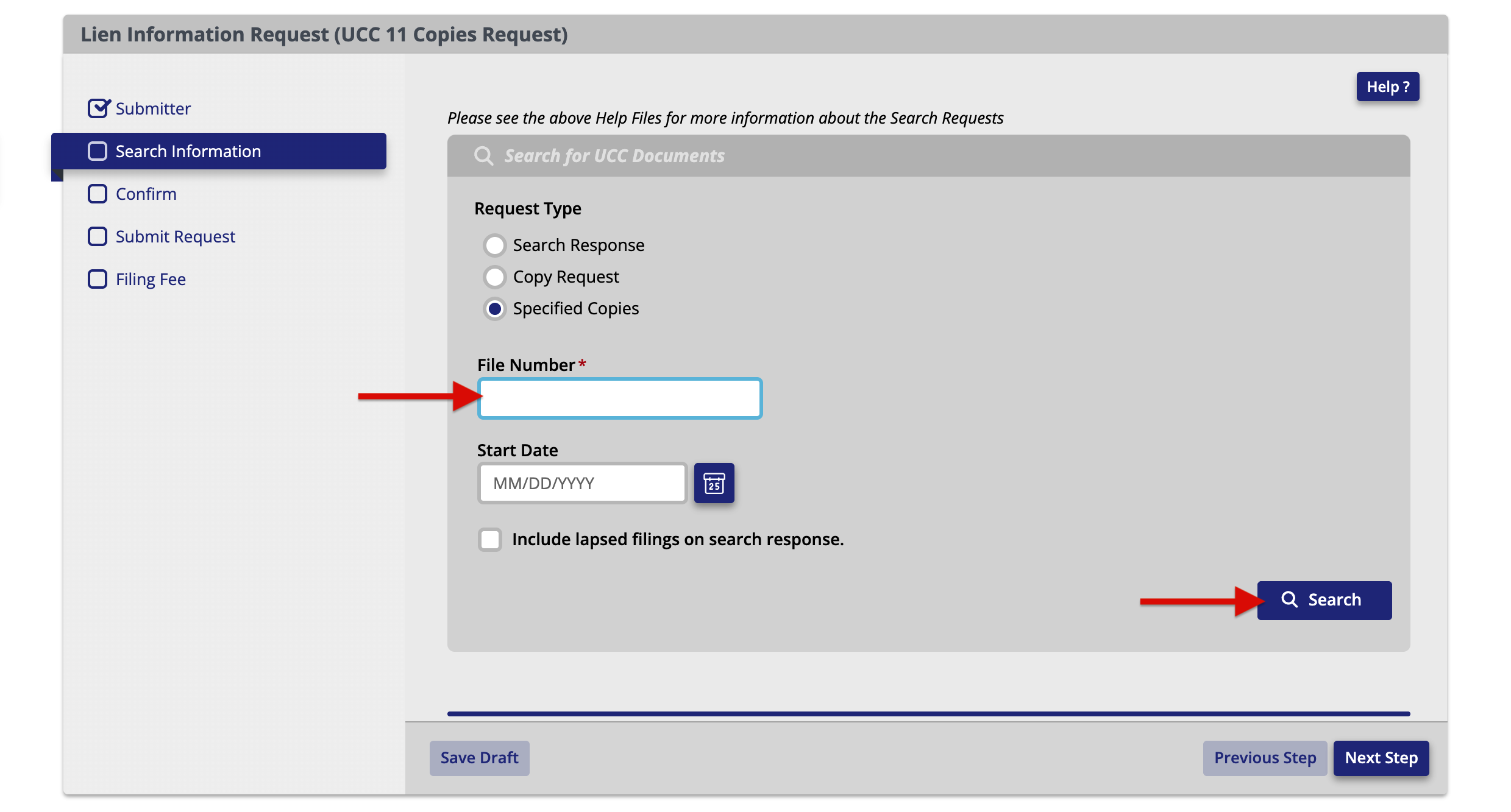
Technically, this request doesn’t just offer the option of procuring copies; it also provides the opportunity to perform a certified search. Here are the three (3) choices given:
- Specified Copies. To acquire a copy of a specific filing, users can elect this option and input the file number.
- Search Response. Generates a certified search report containing all UCC filings associated with the described debtor.
- Copy Request. Combines both options and provides a certified search report along with copies of each filing listed (also based on a debtor’s description).
8. Confirm Information
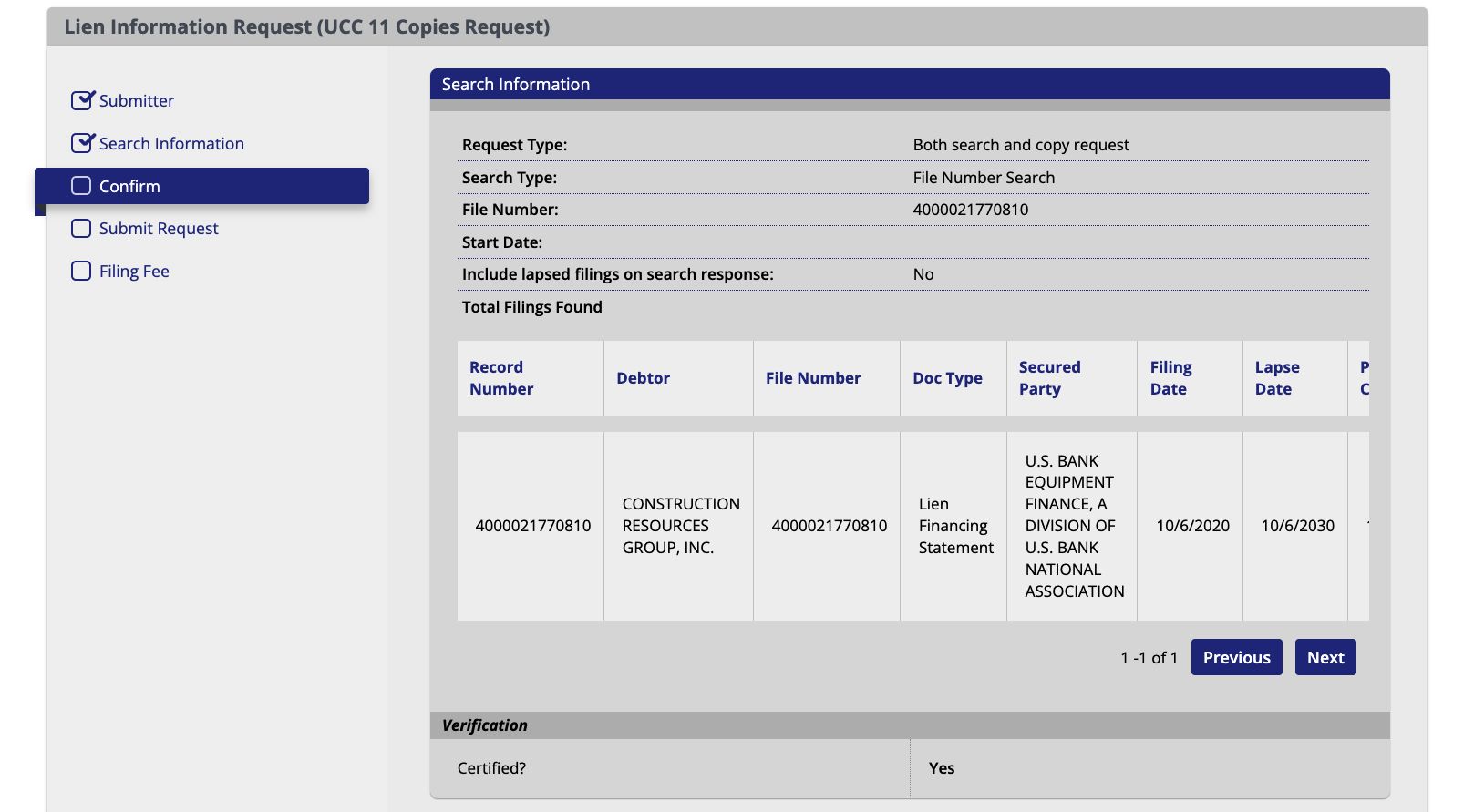
Examine the search overview and verify that the listed data is correct. It will display all the selections made and the filings being requested. If everything looks accurate, proceed to the next step.
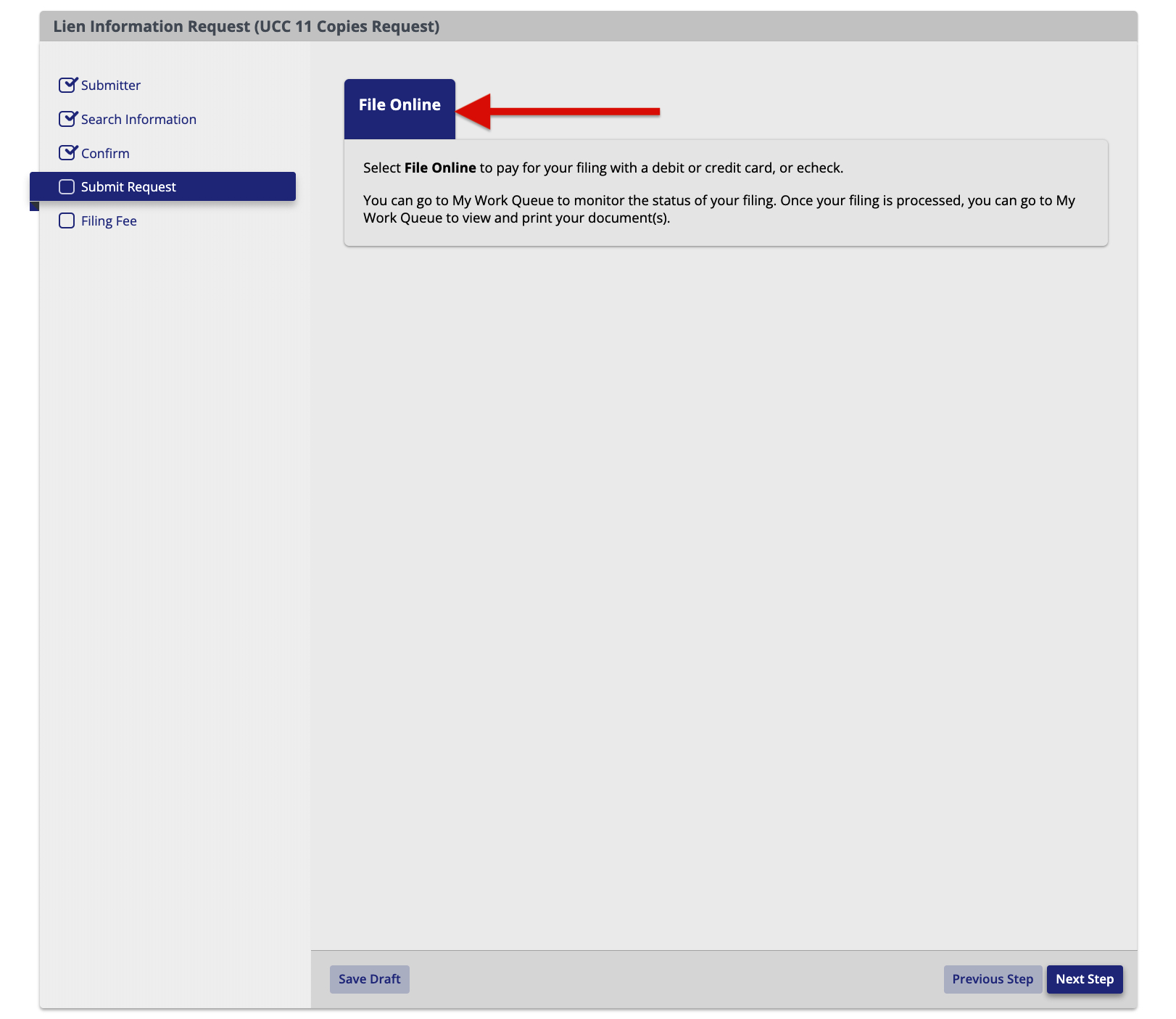
9. Submit Request
Finalize the submission and proceed to the payment page by clicking “File Online“.
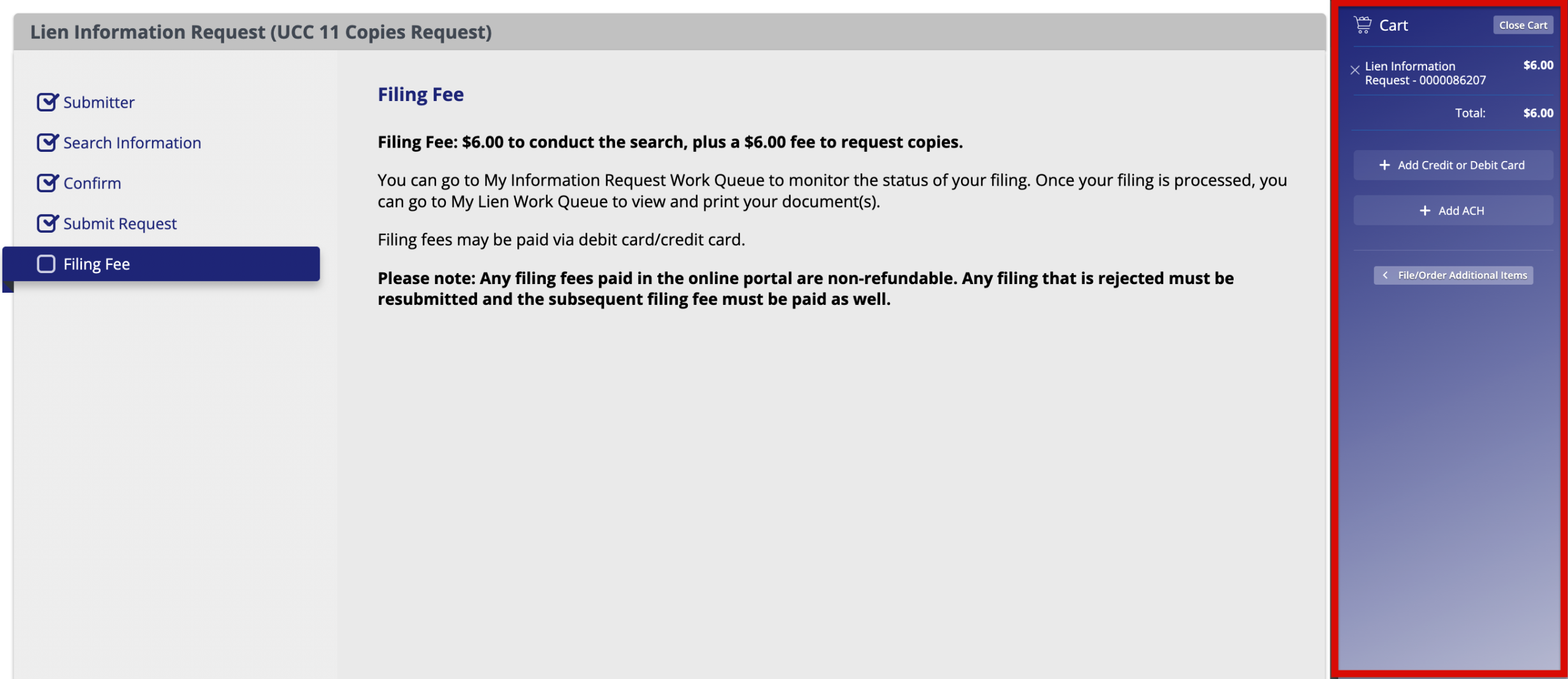
10. Make Payment
View the shopping cart in the right sidebar area. It will display the cost of your items and the payment options for credit/debit cards or ACH. Choose the preferred method and provide the necessary details to complete the transaction.
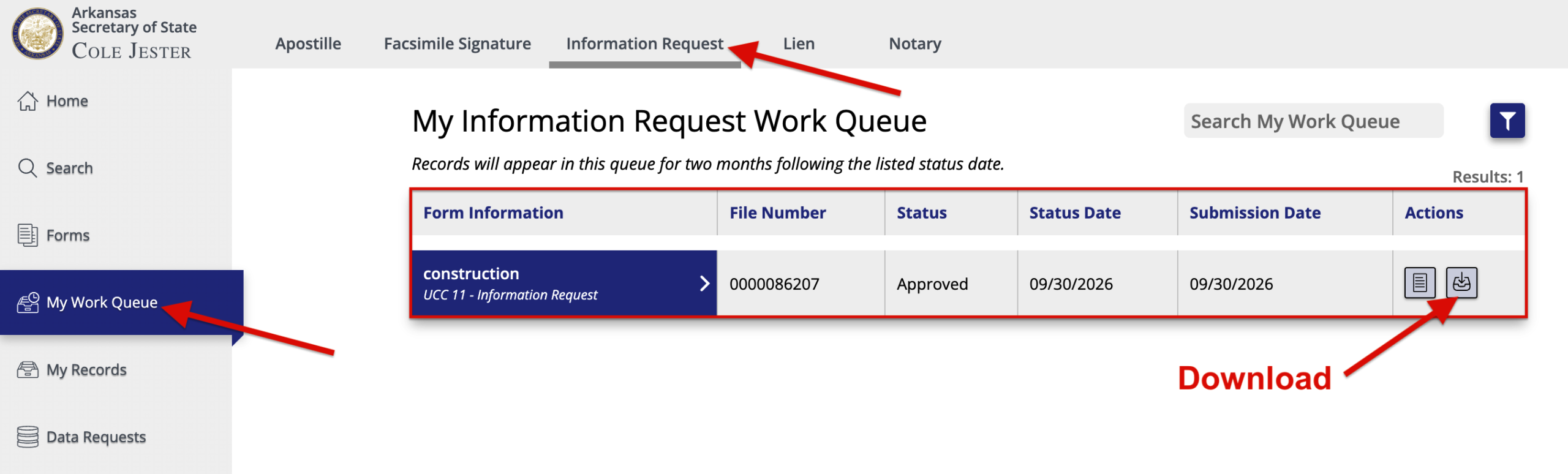
11. Download Copy
To find the record/search that you requested, click “My Work Queue” in the sidebar, then select “Information Request” above. This area will show any lien information requests that have been submitted along with their status.
Once approved, users can download the contents of their request in a ZIP file by clicking the corresponding button under “Actions“.
12. Review Financing Statement
The ZIP file should contain a PDF copy of the financing statement recorded with the Secretary of State. A financing statement registers all the essential information pertaining to a lien, the primary component being the collateral clause.
The collateral clause indicates what property or assets a secured party has rights to if the debtor is unable to meet the obligations of their arrangement.

